It's been a while since I have posted any thing. I have been very busy with the family and work and did not have much time. Also babies are very time consuming. I will be posting about the ADC and the DAC for the Stm32 In a few weeks since things are finally starting to settle down.
STM32W
The ARM STM32 now has an affordable wireless family. It works on 802.11.4. This is the same as zigbee. A lot more external components are needed for it to work than you typical UC but its not too bad.
The team at Nomi Design are all ready doing some open source development for it. They have a PCB design for this Arm chip and are Porting Contiki as their RTOS (Real Time Operation System). Their final product is planed to be an arduino compatible or a standalone component that can send data threw ethernet, IVP4, IPV6, zigbee, mifi or what ever protocol you can think of. A cheap and sweet way to get your arduino wireless. If you want more details visit their web site http://nomidesign.net.
The beauty with these is that you should be able to port your current project over and they are now wireless. I will be working with these for the next little while. I will be posting articles on how to get it going as soon as I get it my self. I can post schematics, but the guys at Nomi Design would probably have a much better board.
If you want to read up on this ARM chip take a look at ST's website
http://www.st.com/internet/mcu/subclass/1377.jsp
Showing posts with label STM32. Show all posts
Showing posts with label STM32. Show all posts
Tuesday, August 9, 2011


Tuesday, February 1, 2011
STM32 Discovery: Porting Polar SSL
Well my next step was porting polarSSL to the arm STM32 chip. I needed this for one of my current project so I am writing how I got it to work. I will be starting from the buffered usart project.
Setting up PolarSLL
So the first thing you need for this task is polar SSL. you can get it here. Copy over the 2 folders: Library and include. Next we will need to add the include folder to our include path. right click on Target and go to the options. Head over to the C/C++ tab. hit the "..." button next to the Include path text box. Then hit the square thing next to the x in the next dialog. Finlay click the "..." button and go find the include folder you just pasted.

From here I would add a new group and call it pollarssl. Then I would add all the files that were in the library folder we just copied over. You will need to add all the C files though to your project.
Now we want to copy the main from ssl_client1.c. you can find it in the source of pollarSSL in the programs\ssl\ folder or here. You also want to keep the code that is all ready in your main. like stm32_Init (); and the initialization of the buffer.
Before we make any changes, we will need to add #include "polarssl/ssl.h". Also, I added this dummy function on top of my main.
Now the changes we need to do. First we will not be using havege so we can remove the following lines:
havege_state hs;
printf( "\n . Connecting to tcp/%s/%4d...", SERVER_NAME,
SERVER_PORT );
fflush( stdout );
if( ( ret = net_connect( &server_fd, SERVER_NAME,
SERVER_PORT ) ) != 0 )
{
printf( " failed\n ! net_connect returned %d\n\n", ret );
goto exit;
}
printf( " ok\n" );
we will also need to change these lines:
net_close( server_fd );
The rest can stay. with these settings I could connect to all the site I need to you might need to un-comment different ciphersuites depending on the site.
Making the code Fit
The havege used for random is quite large. Later we will have to make a hardware random but for now we used our little function called notRandom using the right signature.
Now we need to head over to config.h. we will start commenting out everything we don't need

Next click on the C/C++ tab and set optimization to 3. Also check the on ELF Section per Function. this will remove all unused functions from your code. Setting optimization to level 3 will make it harder to debug but will get your code under 32k

Now with MicroLib, you will not be able to compile. The reason for that is the time function is not coded so we need to code one our self. Simply create and a file and add a empty function like this
#include <time.h>
time_t time ( time_t * timer )
{
return 0;
}
Pollar SSL uses the Time function to determine if the session has expired and if we can reuse past session keys. Making the time function all ways return 0, will force to renegotiate the keys and cause it to take more time. we will have to deal with that for now. I will later change it to return the right time but for now it's not a priority.
That is it. using the application created in the previous blog you can send https request or posts.
There are other ways to connecting to the internet thought. you can use different modules like the network shield they have for the arduino http://www.sparkfun.com/products/9026 or one like this http://www.sparkfun.com/products/9473 that supports sockets or a wifi one like this http://www.sparkfun.com/products/10050.
I want to get this code working with the last one. I will post my changes once I get the part.
Setting up PolarSLL
So the first thing you need for this task is polar SSL. you can get it here. Copy over the 2 folders: Library and include. Next we will need to add the include folder to our include path. right click on Target and go to the options. Head over to the C/C++ tab. hit the "..." button next to the Include path text box. Then hit the square thing next to the x in the next dialog. Finlay click the "..." button and go find the include folder you just pasted.

From here I would add a new group and call it pollarssl. Then I would add all the files that were in the library folder we just copied over. You will need to add all the C files though to your project.
Building the main
Now we want to copy the main from ssl_client1.c. you can find it in the source of pollarSSL in the programs\ssl\ folder or here. You also want to keep the code that is all ready in your main. like stm32_Init (); and the initialization of the buffer.
Before we make any changes, we will need to add #include "polarssl/ssl.h". Also, I added this dummy function on top of my main.
int notRandom(void* param)
{
return 0xE3A576DC;
}
I will go threw, later, how to use the ADC and a random signal generator to make this really random{
return 0xE3A576DC;
}
Now the changes we need to do. First we will not be using havege so we can remove the following lines:
havege_state hs;
/*
* 0. Initialize the RNG and the session data
*/
havege_init( &hs );
memset( &ssn, 0, sizeof( ssl_session ) );
I also remove the net connect code* 0. Initialize the RNG and the session data
*/
havege_init( &hs );
memset( &ssn, 0, sizeof( ssl_session ) );
printf( "\n . Connecting to tcp/%s/%4d...", SERVER_NAME,
SERVER_PORT );
fflush( stdout );
if( ( ret = net_connect( &server_fd, SERVER_NAME,
SERVER_PORT ) ) != 0 )
{
printf( " failed\n ! net_connect returned %d\n\n", ret );
goto exit;
}
printf( " ok\n" );
we will also need to change these lines:
ssl_set_rng( &ssl, havege_rand, &hs );
ssl_set_dbg( &ssl, my_debug, stdout );
ssl_set_bio( &ssl, net_recv, &server_fd,net_send, &server_fd );
We will replace net_recv with my_recv and net_send with my_send and havege_rand with notRandom. the second parameter will be null. This is what it looks likessl_set_dbg( &ssl, my_debug, stdout );
ssl_set_bio( &ssl, net_recv, &server_fd,net_send, &server_fd );
ssl_set_rng( &ssl, notRandom, 0 );
ssl_set_bio( &ssl, my_recv, 0,
my_send, 0 );
Finaly, you need to remove this line near the endssl_set_bio( &ssl, my_recv, 0,
my_send, 0 );
net_close( server_fd );
The rest can stay. with these settings I could connect to all the site I need to you might need to un-comment different ciphersuites depending on the site.
Making the code Fit
The havege used for random is quite large. Later we will have to make a hardware random but for now we used our little function called notRandom using the right signature.
Now we need to head over to config.h. we will start commenting out everything we don't need
//#define POLARSSL_DEBUG_MSG
//#define POLARSSL_SELF_TEST
//#define POLARSSL_VERSION_C
//#define POLARSSL_GENPRIME
//#define POLARSSL_AES_C // You might need this one depending on the site you are accessing
//#define POLARSSL_CAMELLIA_C // You might need this one depending on the site you are accessing
//#define POLARSSL_CERTS_C
//#define POLARSSL_DEBUG_C
//#define POLARSSL_DES_C // You might need this one depending on the site you are accessing
//#define POLARSSL_DHM_C
//#define POLARSSL_HAVEGE_C
//#define POLARSSL_NET_C
//#define POLARSSL_PADLOCK_C
//#define POLARSSL_SHA2_C
//#define POLARSSL_SHA4_C
//#define POLARSSL_SSL_SRV_C
//#define POLARSSL_TIMING_C
//#define POLARSSL_X509_WRITE_C
//#define POLARSSL_XTEA_C
So I will show you how to add some compiler optimization on your code with keil that will remove allot of the unused code. Unfortunately, it would require allot of #ifdef code to do this manually. First off, open you project settings. on the target Tab check use microLIB and Use Link-Time Code Generation. The last one will make it a little longer to compile but will save you around 4k in program space.
Next click on the C/C++ tab and set optimization to 3. Also check the on ELF Section per Function. this will remove all unused functions from your code. Setting optimization to level 3 will make it harder to debug but will get your code under 32k

Now with MicroLib, you will not be able to compile. The reason for that is the time function is not coded so we need to code one our self. Simply create and a file and add a empty function like this
#include <time.h>
time_t time ( time_t * timer )
{
return 0;
}
Pollar SSL uses the Time function to determine if the session has expired and if we can reuse past session keys. Making the time function all ways return 0, will force to renegotiate the keys and cause it to take more time. we will have to deal with that for now. I will later change it to return the right time but for now it's not a priority.
That is it. using the application created in the previous blog you can send https request or posts.
There are other ways to connecting to the internet thought. you can use different modules like the network shield they have for the arduino http://www.sparkfun.com/products/9026 or one like this http://www.sparkfun.com/products/9473 that supports sockets or a wifi one like this http://www.sparkfun.com/products/10050.
I want to get this code working with the last one. I will post my changes once I get the part.
Monday, January 31, 2011
STM32 Discovery: The Basics - Buffering the USART and Error Handling
So this part is mostly coding a linked list. probably not the most efficient linked list either but it servers its purpose does not have much over head too. The code also does not do checks if pointer is null and such and assumes you will be able to add that. The code has room for improvement but this is to give a basic idea.
so I created 2 files urat.h and uart.c. I will not describe adding the function signatures in the header and assume you will do that.
we will first need to declare out struct for the linked list.
We also nee a couple global variables
//a pointer to the buffer we are currently reading from
extern LinkedReadWriteBuffer* receiveReadBuffer;
//the pointer to the buffer we are writing to
extern LinkedReadWriteBuffer* receiveWriteBuffer;
We will define these variables in uart.c
now in our main we will need to instantiate those variables
now we are ready to tackle uart.c
The first function we need to define is initRWBuff() this function will initialize a buffer to its default values.
here is what mine looks like
void initRWBuff(ReadWriteBuffer * tmpBuff)
{
tmpBuff->buffer = (int*)malloc( sizeof(int) * tmpBuff->size);
if(!tmpBuff->buffer)
{
HardFault_Handler();
}
tmpBuff->writeAt = 0 ;
tmpBuff->readAt = 0 ;
}
So now we need to write the the buffer every time we receive a byte from our interrupt routine. Basicalyy we will read the char we are receiving and insert it into the buffer. we will increment our counter of where the last byte was written. If the buffer if full, we will create a new buffer to write in the next time. It would probably be more efficent to have it create the buffer only one we need to use it.
Here is what my routine looks like
here is what it looks like:
int jm_recv(void* uart, unsigned char * buff, int size)
{
int i=0;
for(;i<size && receiveReadBuffer->buffer.readAt < receiveReadBuffer->buffer.writeAt;i++)
{
buff[i] = (char) receiveReadBuffer->buffer.buffer[receiveReadBuffer->buffer.readAt];
receiveReadBuffer->buffer.readAt++;
if(receiveReadBuffer->buffer.readAt == receiveReadBuffer->buffer.size)
{
if(receiveReadBuffer->next)
{
LinkedReadWriteBuffer* p = receiveReadBuffer;
receiveReadBuffer = receiveReadBuffer->next;
free(p->buffer.buffer);
free(p);
}
}
}
return i;
}
if you want o wrap SendByte with a similar signature. here what I did.
now for simple error handling we just need to override the error functions we want to handle. similar to our IRQ. I simply Added this under the main.
void HardFault_Handler(void)
{
int error = 0;
while(1);
}
Eventually I will make it reboot the device. a few more error functions you can override are
DCD HardFault_Handler ; Hard Fault Handler
DCD MemManage_Handler ; MPU Fault Handler
DCD BusFault_Handler ; Bus Fault Handler
DCD UsageFault_Handler ; Usage Fault Handler
You can see the list in STM32F10x.s
Finlay you might want a larger stack then the default. the stm32 Discovery has 92kb of ram. I set my stack to half of that. Open up STM32F10x.s and click the Configuration Wizard at the bottom. open the stack Configuration and increase the Stack size. I set mine to 0x14000.
The next post will cover using the usart to connect to a pc that will then connect to the internet. I will also suggest other ways to connect to the internet with out the PC
so I created 2 files urat.h and uart.c. I will not describe adding the function signatures in the header and assume you will do that.
we will first need to declare out struct for the linked list.
#define READ_BUFF_SIZE 1024
//structs
typedef struct ReadWriteBufferStruct
{
int size;
int readAt; //the next byte to read
int writeAt; //the next byte to write
int* buffer;
}ReadWriteBuffer ;
typedef struct LinkedReadWriteBufferStruct
{
struct LinkedReadWriteBufferStruct* next;
ReadWriteBuffer buffer;
}LinkedReadWriteBuffer ;
We also nee a couple global variables
//a pointer to the buffer we are currently reading from
extern LinkedReadWriteBuffer* receiveReadBuffer;
//the pointer to the buffer we are writing to
extern LinkedReadWriteBuffer* receiveWriteBuffer;
We will define these variables in uart.c
now in our main we will need to instantiate those variables
receiveReadBuffer = (LinkedReadWriteBuffer*) malloc(sizeof(LinkedReadWriteBuffer) ) ;
receiveWriteBuffer = receiveReadBuffer;
receiveReadBuffer->buffer.size = READ_BUFF_SIZE;
receiveWriteBuffer = receiveReadBuffer;
receiveReadBuffer->buffer.size = READ_BUFF_SIZE;
initRWBuff(&(receiveReadBuffer->buffer));
now we are ready to tackle uart.c
The first function we need to define is initRWBuff() this function will initialize a buffer to its default values.
here is what mine looks like
void initRWBuff(ReadWriteBuffer * tmpBuff)
{
tmpBuff->buffer = (int*)malloc( sizeof(int) * tmpBuff->size);
if(!tmpBuff->buffer)
{
HardFault_Handler();
}
tmpBuff->writeAt = 0 ;
tmpBuff->readAt = 0 ;
}
So now we need to write the the buffer every time we receive a byte from our interrupt routine. Basicalyy we will read the char we are receiving and insert it into the buffer. we will increment our counter of where the last byte was written. If the buffer if full, we will create a new buffer to write in the next time. It would probably be more efficent to have it create the buffer only one we need to use it.
Here is what my routine looks like
void USART1_IRQHandler (void)
{
volatile unsigned int IIR;
IIR = USART1->SR;
if (IIR & USART_FLAG_RXNE) // read interrupt
{
USART1->SR &= ~USART_FLAG_RXNE; // clear interrupt
receiveWriteBuffer->buffer.buffer[receiveWriteBuffer->buffer.writeAt] = (USART1->DR & 0x1FF);
receiveWriteBuffer->buffer.writeAt++;
if(receiveWriteBuffer->buffer.writeAt == receiveWriteBuffer->buffer.size)
{
LinkedReadWriteBuffer* tmpBuff;
tmpBuff = (LinkedReadWriteBuffer*) malloc(sizeof(LinkedReadWriteBuffer) ) ;
if(!tmpBuff)
{
HardFault_Handler();
}
tmpBuff->buffer.size = READ_BUFF_SIZE;
if(!tmpBuff->buffer.size)
{
HardFault_Handler();
}
tmpBuff->next = 0 ;
initRWBuff(&(tmpBuff->buffer));
receiveWriteBuffer->next = tmpBuff;
receiveWriteBuffer = tmpBuff;
}
}
}
now we need to create a function that will read the buffer and skip to the next one when we get to the end. I will call mine my_recv() because I will use this function else where for socket connection. {
volatile unsigned int IIR;
IIR = USART1->SR;
if (IIR & USART_FLAG_RXNE) // read interrupt
{
USART1->SR &= ~USART_FLAG_RXNE; // clear interrupt
receiveWriteBuffer->buffer.buffer[receiveWriteBuffer->buffer.writeAt] = (USART1->DR & 0x1FF);
receiveWriteBuffer->buffer.writeAt++;
if(receiveWriteBuffer->buffer.writeAt == receiveWriteBuffer->buffer.size)
{
LinkedReadWriteBuffer* tmpBuff;
tmpBuff = (LinkedReadWriteBuffer*) malloc(sizeof(LinkedReadWriteBuffer) ) ;
if(!tmpBuff)
{
HardFault_Handler();
}
tmpBuff->buffer.size = READ_BUFF_SIZE;
if(!tmpBuff->buffer.size)
{
HardFault_Handler();
}
tmpBuff->next = 0 ;
initRWBuff(&(tmpBuff->buffer));
receiveWriteBuffer->next = tmpBuff;
receiveWriteBuffer = tmpBuff;
}
}
}
here is what it looks like:
int jm_recv(void* uart, unsigned char * buff, int size)
{
int i=0;
for(;i<size && receiveReadBuffer->buffer.readAt < receiveReadBuffer->buffer.writeAt;i++)
{
buff[i] = (char) receiveReadBuffer->buffer.buffer[receiveReadBuffer->buffer.readAt];
receiveReadBuffer->buffer.readAt++;
if(receiveReadBuffer->buffer.readAt == receiveReadBuffer->buffer.size)
{
if(receiveReadBuffer->next)
{
LinkedReadWriteBuffer* p = receiveReadBuffer;
receiveReadBuffer = receiveReadBuffer->next;
free(p->buffer.buffer);
free(p);
}
}
}
return i;
}
if you want o wrap SendByte with a similar signature. here what I did.
int jm_send(void * param, unsigned char * buff, int size)
{
int i;
for(i=0;i<size;i++)
{
while (!(USART1->SR & USART_FLAG_TXE));
USART1->DR = ((buff[i]) & 0xFF);
}
return size;
}
I warped these this way because I will be using them with polarssl {
int i;
for(i=0;i<size;i++)
{
while (!(USART1->SR & USART_FLAG_TXE));
USART1->DR = ((buff[i]) & 0xFF);
}
return size;
}
now for simple error handling we just need to override the error functions we want to handle. similar to our IRQ. I simply Added this under the main.
void HardFault_Handler(void)
{
int error = 0;
while(1);
}
Eventually I will make it reboot the device. a few more error functions you can override are
DCD HardFault_Handler ; Hard Fault Handler
DCD MemManage_Handler ; MPU Fault Handler
DCD BusFault_Handler ; Bus Fault Handler
DCD UsageFault_Handler ; Usage Fault Handler
You can see the list in STM32F10x.s
Finlay you might want a larger stack then the default. the stm32 Discovery has 92kb of ram. I set my stack to half of that. Open up STM32F10x.s and click the Configuration Wizard at the bottom. open the stack Configuration and increase the Stack size. I set mine to 0x14000.
The next post will cover using the usart to connect to a pc that will then connect to the internet. I will also suggest other ways to connect to the internet with out the PC
Monday, January 24, 2011
STM32 Discovery: The Basics - Echo the serial port (USART)
This is a continuing of my first post. In this post I will build on what we had in the first one and get the ARM STM32 to echo what we send over the terminal with serial.
The first step is to configure the usart. Open STM32_Init.c with the configuration wizard. I will write on how to do it in C when I cover getting started with GCC. Enable your USART1 and set the parameters. Also enable USAT1 interrupts on RXNE (receive) that way we don't need to poll the data and we will be notified when a byte has arrived.
 Once every thing is configured to your liking, hit save. Now we will be able to use the structure called USART1. Here are a few notes on members that are used allot.
USART1->SR this contains information about the interrupt that was generated
USART1->DR this contains the byte that we received or that will will write
if you assign USART1->DR a value, it will send that value out the usart. If you get the value form USART1->DR, if will read the value received from the usart.
Next, open you need to open main.c. In this file we will add the function definition for void USART1_IRQHandler (void). This function was declared STM32F10x.s and was all ready mapped to an interrupt vector. So all we need to do is enable the interrupt (which we all ready did in the configuration wizard) and override it.
My function will look a little bit like this.
We will of course need to define SendByte. The prototype will be void SendByte(int byte);
My definition will look something like this.
Now you simply need to connect PA10 to RX and PA9 to TX on your hardware. I used the FTDI chip on my arduino to accomplish this. I simply connected PA10 to RX and PA9 to TX of my arduino and took the avr out. After that what ever you send over to the terminal will echo back to you. If you need a terminal program, I used Termite
You can download the project form my Code Project article
The first step is to configure the usart. Open STM32_Init.c with the configuration wizard. I will write on how to do it in C when I cover getting started with GCC. Enable your USART1 and set the parameters. Also enable USAT1 interrupts on RXNE (receive) that way we don't need to poll the data and we will be notified when a byte has arrived.

USART1->SR this contains information about the interrupt that was generated
USART1->DR this contains the byte that we received or that will will write
if you assign USART1->DR a value, it will send that value out the usart. If you get the value form USART1->DR, if will read the value received from the usart.
Next, open you need to open main.c. In this file we will add the function definition for void USART1_IRQHandler (void). This function was declared STM32F10x.s and was all ready mapped to an interrupt vector. So all we need to do is enable the interrupt (which we all ready did in the configuration wizard) and override it.
My function will look a little bit like this.
void USART1_IRQHandler (void)
{
volatile unsigned int vsr;
{
volatile unsigned int vsr;
int ByteSent;
vsr= USART1->SR;
if (vsr& USART_FLAG_RXNE) // did we interrupt on the read
{
vsr= USART1->SR;
if (vsr& USART_FLAG_RXNE) // did we interrupt on the read
{
// clear the interrupt since we are processing it
USART1->SR &= ~(USART_FLAG_RXNE);
ByteSent = (USART1->DR & 0x1FF);
USART1->SR &= ~(USART_FLAG_RXNE);
ByteSent = (USART1->DR & 0x1FF);
SendByte(ByteSent);
}
}
}
We will of course need to define SendByte. The prototype will be void SendByte(int byte);
My definition will look something like this.
void SendByte (int byte)
{
//Wait for the uart to finish sending the byte.
while (!(USART1->SR & USART_FLAG_TXE));
USART1->DR = (byte & 0xFF);
}
{
//Wait for the uart to finish sending the byte.
while (!(USART1->SR & USART_FLAG_TXE));
USART1->DR = (byte & 0xFF);
}
Now you simply need to connect PA10 to RX and PA9 to TX on your hardware. I used the FTDI chip on my arduino to accomplish this. I simply connected PA10 to RX and PA9 to TX of my arduino and took the avr out. After that what ever you send over to the terminal will echo back to you. If you need a terminal program, I used Termite
You can download the project form my Code Project article
Wednesday, January 19, 2011
STM32 Discovery: The Basics - Creating a project
In this post I will be discussing how I got the stm32 discovery board working with the Keil IDE. This was my first time using an ARM processor, so I decided to go with a commercial grade IDE since they tend to be easier to use. As I switch over to GCC I will document that process as well.
For starters you need the STM32 discovery board
check it out at mouser
Also you will need the Keil IDE. You can download a free limited to 32kb program space version here
First off you need to create a new project and select the processor in the ST Micro section
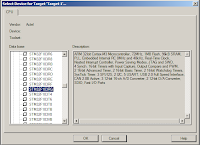
It will then ask you if you want to Copy STM32 Start up Code to the Project Folder. Choose yes. I would then recommend you use the Keil STM32_init files. I found them in a example code. It can be found here
Once you have downloaded the files, unzip it. Copy over the following files to the same folder as the project file.
STM32_Init.c
STM32_Init.h
STM32_Reg.h
Now add STM32_Init.c to your project. Right click on the Source Group 1 and click add file to group. You can group them however you want, it doesn't change how any thing builds.
Also, to keep things clean we will create a Bin folder. So we make a new directory in the same folder as our project. Next, right click on the Target folder and click options for target.
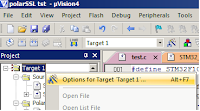
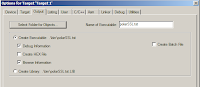
Then click output and click Select Folder for Objects and go find our bin folder that we created.
Finally, create and add a file (lets call it main.c). In there, add a main function that will call the Init code and include the init file. You might also want to include the STM32 lib file.
#include<stm32f10x_lib.h>
#include "STM32_Init.h"
int main (void)
{
stm32_Init();
return 0;
}
Now we need to set up our debugging environment for the STM32 Discovery. First we need to choose our debugger. So right click on the project and click options for target and head to the debug tab. Next, you don't want to be running a simulator so we will click the Use: radio button to the right half. in the drop down we will choose the ST-Link Debugger. Then you need to click setting and choose SWD. finally I like to have run to main() check so that is stops at the main before running.

Next we need to define the flashing tool to upload your program to the STM32. So head over to the Utilities tab and select the "Use Target Driver for Flash programming" radio button. Then you can choose the ST-Link Debugger from the drop down.

Now you are all ready to debug. In my next entry I will be making code to echo a terminal with The STM32 USART.
You can download the project form my Code Project article
For starters you need the STM32 discovery board
check it out at mouser
Also you will need the Keil IDE. You can download a free limited to 32kb program space version here
First off you need to create a new project and select the processor in the ST Micro section

It will then ask you if you want to Copy STM32 Start up Code to the Project Folder. Choose yes. I would then recommend you use the Keil STM32_init files. I found them in a example code. It can be found here
Once you have downloaded the files, unzip it. Copy over the following files to the same folder as the project file.
STM32_Init.c
STM32_Init.h
STM32_Reg.h
Now add STM32_Init.c to your project. Right click on the Source Group 1 and click add file to group. You can group them however you want, it doesn't change how any thing builds.
Also, to keep things clean we will create a Bin folder. So we make a new directory in the same folder as our project. Next, right click on the Target folder and click options for target.

Then click output and click Select Folder for Objects and go find our bin folder that we created.

Finally, create and add a file (lets call it main.c). In there, add a main function that will call the Init code and include the init file. You might also want to include the STM32 lib file.
#include
#include "STM32_Init.h"
int main (void)
{
return 0;
}
Now we need to set up our debugging environment for the STM32 Discovery. First we need to choose our debugger. So right click on the project and click options for target and head to the debug tab. Next, you don't want to be running a simulator so we will click the Use: radio button to the right half. in the drop down we will choose the ST-Link Debugger. Then you need to click setting and choose SWD. finally I like to have run to main() check so that is stops at the main before running.

Next we need to define the flashing tool to upload your program to the STM32. So head over to the Utilities tab and select the "Use Target Driver for Flash programming" radio button. Then you can choose the ST-Link Debugger from the drop down.

Subscribe to:
Posts (Atom)